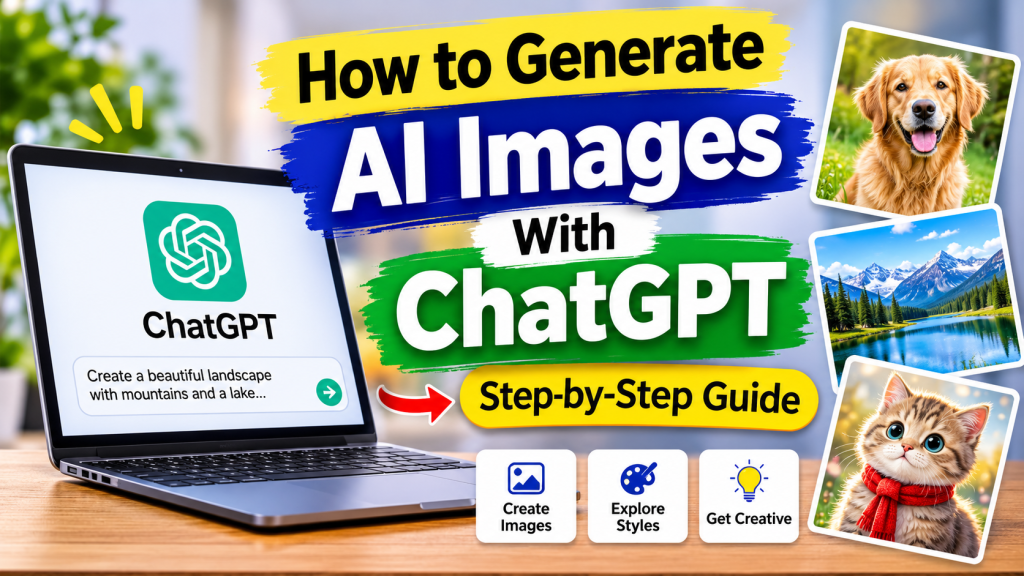
You do not need graphic design experience to create an image with ChatGPT. Describe what you want in everyday language, and ChatGPT can turn your instructions into a visual. You can then ask it to change the colors, adjust the composition, add details, or edit an existing picture.
This guide explains how to use ChatGPT as an AI image generator, from writing your first prompt to saving the finished image. It is written for beginners, content creators, students, bloggers, and anyone who wants to make images without complicated design software.
What Is ChatGPT Image Generation?
ChatGPT includes an image-generation feature called ChatGPT Images. It can create new images from text descriptions and edit existing images using natural-language instructions.
For example, you could ask it to create a realistic product photo, a cartoon character, a blog illustration, or a social media graphic. You can also upload a picture and describe the changes you want.
ChatGPT Images is available on the web, iOS, and Android across ChatGPT plans. Free accounts have limited image-generation usage, while paid plans offer higher limits. Exact limits can change. OpenAI Help Center+1
How to Generate AI Images With ChatGPT
Follow these steps to create your first image.
Step 1: Open ChatGPT
Visit ChatGPT and sign in to your account. You can generate an image directly in a conversation or open the Images section from the ChatGPT interface.
The exact layout may vary slightly depending on your device and account.
Step 2: Describe the Image You Want
Write a prompt explaining what you want ChatGPT to create. You do not need special commands or technical language. Be clear about the subject, background, style, colors, and mood.
For example, instead of writing:
Create a cat picture.
Try a more detailed prompt:
Create a cute orange mother cat sitting beside her small kitten in a cozy living room. Use a polished 3D cartoon style, soft natural lighting, detailed fur, warm colors, and a cheerful family-friendly mood. Show both characters clearly in a horizontal composition.
The second prompt gives the AI more information to work with.
Step 3: Generate the Image
Send your prompt and wait for ChatGPT to create the image. Depending on the complexity of the request, generation may take a few minutes.
If the first result is not exactly what you imagined, do not start from scratch immediately. You can give ChatGPT another instruction to refine the existing result. OpenAI Help Center
Step 4: Improve the Result
This is where conversational image generation becomes useful. You can ask ChatGPT to make specific changes without rewriting the entire prompt.
For example:
- “Make the background brighter.”
- “Change the cat’s fur to white.”
- “Add more space around the subject.”
- “Make the image look like a realistic photograph.”
- “Remove the objects in the background.”
You can also open an image in the editor, select an area, and describe the change you want. Keep in mind that selection boundaries are not always exact, so an edit may affect areas beyond the highlighted section. OpenAI Help Center
Step 5: Choose the Right Image Shape
Think about where you plan to use the image before finishing it.
- Blog featured image: A wide landscape composition usually works well.
- Instagram or Facebook post: Use a square or portrait layout depending on the placement.
- YouTube thumbnail: Use a horizontal 16:9 composition.
- YouTube Shorts or Reels: Request a vertical 9:16 image.
You can choose an aspect ratio using the image controls when available, or include it in your prompt. OpenAI Help Center
Step 6: Save Your Image
When you are happy with the result, open the image and select Save to download it to your device. You can also copy it or share it directly from the image controls.
Generated images are stored in the Images section, where you can revisit them later. OpenAI Help Center
Tips for Writing Better AI Image Prompts
A strong prompt gives the image generator clear visual instructions. Include these details when they matter:
- Subject: What should appear in the image?
- Setting: Where is the scene taking place?
- Style: Should it look realistic, cinematic, cartoon-like, or illustrated?
- Lighting: Should the scene have soft daylight, dramatic shadows, or studio lighting?
- Composition: Should the subject be centered, close-up, or shown from a distance?
- Format: Do you need a square, landscape, or portrait image?
You do not need to include every detail in every prompt. Focus on the elements that matter most to your project.
Is ChatGPT a Free AI Image Generator?
Yes, you can create images with a free ChatGPT account, but free image generation has usage limits. If you reach your limit, ChatGPT will notify you when you can use the feature again. Paid plans generally provide higher usage limits. Check the current ChatGPT plans for details before subscribing. OpenAI Help Center+1
Copyright and Privacy: What Should You Know?
OpenAI’s Terms of Use state that, between you and OpenAI and to the extent permitted by law, you own the output. However, this does not automatically guarantee copyright protection in every country or mean that an image is free from third-party rights issues. Similar outputs may also be generated for other users. OpenAI
Before using an image commercially, check the laws and requirements that apply to your situation. Avoid prompts or uploaded material that misuse another person’s protected work, likeness, or private information.
Also, think carefully before uploading confidential documents, private photographs, or sensitive business information. OpenAI’s terms explain that content may be used to provide, maintain, develop, and improve its services; users can review the available data controls and opt-out options. OpenAI
9. FAQs
Can I generate images with ChatGPT for free?
Yes. Free ChatGPT accounts can create images, but image generation has separate usage limits. The available allowance may change.
Do I need to install software to create images?
No. You can use ChatGPT Images through the ChatGPT website or its mobile apps.
Can ChatGPT edit an image I already have?
Yes. Upload an image and describe the changes you want. You can also use the editor’s selection tool to identify an area for editing. OpenAI Help Center
How do I get more realistic AI images?
Describe the subject, environment, lighting, camera perspective, and visual style. For example, request a realistic product photograph with soft studio lighting and a clean background rather than simply asking for a product image.
Can I use ChatGPT-generated images on my blog?
You can use generated output subject to applicable laws and OpenAI’s terms. Check for third-party rights, review the image carefully, and make sure it is appropriate for your website.
Can ChatGPT create images for YouTube thumbnails?
Yes. Describe the subject, mood, colors, and layout, and request a horizontal 16:9 composition. You may need to refine the result to leave enough space for your thumbnail text.
10. Conclusion
ChatGPT makes image creation accessible to people who do not have design experience. Start with a clear description, generate an image, and improve it through specific follow-up instructions. You can also upload existing pictures for editing and save finished results directly from ChatGPT.
The best way to get useful results is to be specific about what you want and review the final image before publishing it. Try creating one image for a blog post, social media update, or personal project, then refine your prompt until the result fits your needs.