Creating a video used to require a camera, editing software, and hours of work. Now, you can turn a written idea or a still image into a moving video with the help of artificial intelligence.
If you want to learn how to make AI videos, you do not need expensive equipment or professional editing experience to get started. Several AI tools let beginners experiment with video generation, while free editing software can help turn short clips into complete videos.
You could create a cinematic scene for YouTube, animate a product photograph, make a short video for Instagram, or produce visual content for a small business. The process depends on the type of video you want to create and the tools you choose.
In this guide, you will learn how AI video generation works, which tools are worth exploring, how to create your first video step by step, and how to improve your results without spending money unnecessarily.
Quick Answer: How Can You Make AI Videos for Free?
The easiest way to make an AI video is to choose a video generator, describe the scene you want, generate a short clip, and edit the result using a free video editor.
Follow these steps:
- Choose an AI video generator with a free option.
- Decide whether to create a video from text or animate an existing image.
- Write a detailed prompt describing the scene and movement.
- Generate the video and review the result.
- Adjust your prompt or settings if necessary.
- Import the clip into a video editor.
- Add captions, music, voiceovers, or additional scenes.
- Export the finished video using the available free settings.
Keep in mind that free access varies between platforms. Some provide limited credits, while others restrict particular models, resolutions, or export options. Check the current terms before starting a project.
What Is AI Video Generation?
AI video generation is a technology that creates moving visual content from instructions or reference material. Instead of recording every scene yourself, you give an AI model information about what you want to see.
The system then generates a video based on your input.
There are three common ways to create AI videos.
1. Text-to-Video
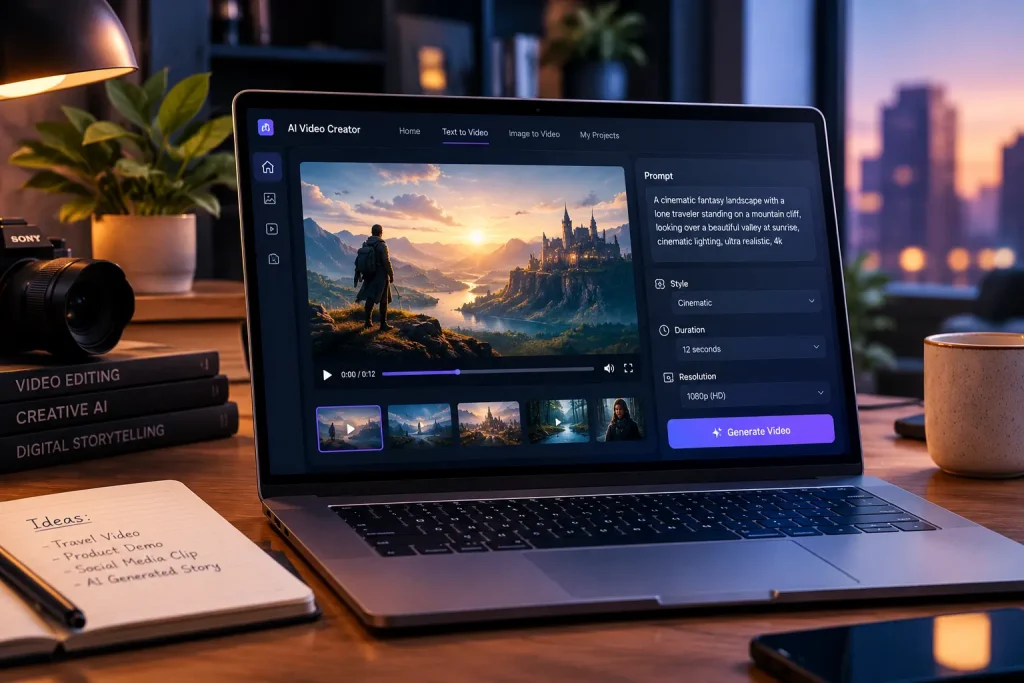
Text-to-video tools turn a written description into a moving scene.
For example, you could enter:
“A golden retriever runs across a green meadow on a sunny afternoon. The camera follows the dog as flowers move gently in the breeze. Natural lighting, realistic movement, cinematic composition.”
The AI attempts to create a clip that matches the description.
This method works well for creative concepts, fictional scenes, cinematic visuals, short advertisements, and video backgrounds.
2. Image-to-Video
Image-to-video AI takes an existing image and animates it.
You upload a photograph or an AI-generated image and describe the movement you want.
For example, a photograph of a mountain landscape could become a short clip with drifting clouds, moving water, and a slowly advancing camera.
This approach is particularly useful when you already have a visual concept and want more control over the appearance of the subject.
3. Script-to-Video
Script-to-video tools help assemble a more complete video from a topic or written script. Depending on the platform, they may suggest scenes, generate narration, add stock footage, or create captions.
This can be useful for educational videos, explainers, product demonstrations, and social media content.
However, script-to-video tools do not always generate every visual from scratch. Some combine existing footage, templates, and AI-generated elements.
Best Free AI Video Generators for Beginners
There is no single best AI video generator for every situation. Your choice depends on whether you want original cinematic footage, animated photographs, narrated explainers, or a finished social media video.
Here are four options worth exploring.
1. Dreamina — For Creating Videos From Text and Images
Dreamina provides AI creative tools for generating visual content from prompts and reference images. Its video-generation features can be useful for creating short scenes, animating images, and experimenting with different visual styles.
Best for:
- Turning ideas into short visual clips.
- Animating photographs and artwork.
- Creating visual content for social media.
- Experimenting with different creative concepts.
How to start: Visit the Dreamina AI video generator, check the features available to your account, and follow the on-screen instructions.
Free access, model availability, and generation limits can vary. Check the credit requirements and download conditions before creating several clips.
2. Runway — For Exploring AI Video Creation and Editing
Runway offers generative video tools and additional creative features for modifying and refining visual content.
It can be useful if you want to experiment with AI-generated scenes and explore a more advanced creative workflow.
Best for:
- Experimenting with image-to-video generation.
- Refining existing visual content.
- Exploring AI-assisted video editing.
- Developing short creative scenes.
Runway currently offers a free entry plan with a limited, one-time credit allowance. Its available generation features and restrictions depend on the plan.
Start at the official Runway website and review the current free-plan details before beginning.
3. CapCut — For Editing and Finishing Videos
CapCut offers video editing features alongside AI-powered tools. It is particularly useful when you need to combine clips, add captions, arrange scenes, and prepare content for social platforms.
Best for:
- Editing generated video clips.
- Adding subtitles and text.
- Combining several scenes.
- Adding voiceovers, music, and transitions.
- Preparing videos for YouTube Shorts and other social platforms.
Some AI features and export options may have separate restrictions, depending on the version and account.
Visit the CapCut AI video generator to review its current offerings.
4. Pika — For Short, Creative Video Effects
Pika focuses on AI-generated video and creative visual effects. It is worth exploring if you want to animate an image, experiment with unusual transformations, or create short visual clips.
Best for:
- Creative social media videos.
- Short visual effects.
- Animated images.
- Experimental video concepts.
Before choosing a plan, check the current free allowance, supported generation modes, output quality, and any watermark restrictions on the official Pika website.
Which Tool Should You Choose?
| Your goal | Where to start |
|---|---|
| Create a video from a text prompt | Dreamina |
| Animate an existing image | Dreamina or Runway |
| Edit clips and add captions | CapCut |
| Experiment with creative effects | Pika |
| Create a complete video workflow | Combine a generator with an editor |
These are starting points, not a guarantee that every feature is free. Test the available free options before committing to a tool.
How to Make AI Videos for Free: Step-by-Step Tutorial
Now let’s walk through the actual process of creating a video.
For this example, imagine you want to create a short cinematic video of a coffee cup on a wooden table, with steam rising into the air and warm sunlight entering through a window.
The same general workflow can be adapted to product videos, nature scenes, YouTube visuals, and other creative projects.
Step 1: Decide What Your Video Should Show
Start with a clear idea rather than opening a tool and entering a random prompt.
Think about four things:
- Subject: What should appear in the video?
- Action: What should happen?
- Setting: Where does the scene take place?
- Style: Should the result look realistic, animated, cinematic, or artistic?
For the coffee example:
- Subject: A ceramic coffee cup.
- Action: Steam rises slowly from the coffee.
- Setting: A wooden table beside a window.
- Style: Warm, realistic, cinematic lighting.
This gives you a clear direction before you start generating.
Step 2: Choose an AI Video Generator
Open your selected platform and create an account if required.
Look for a text-to-video or image-to-video option.
If you are starting with a written idea, choose text-to-video. If you already have a photograph or AI-generated image, choose image-to-video when the tool supports it.
Before generating anything, check the credit cost, maximum clip length, resolution, and download restrictions.
Free credits can be limited, so it is worth reviewing these details before spending them.
Step 3: Write a Detailed AI Video Prompt
Your prompt tells the AI what to create. A vague description can produce an unpredictable result, while a more specific description gives the model clearer instructions.
Compare these examples.
Weak prompt:
“Make a coffee video.”
Improved prompt:
“A close-up cinematic shot of a white ceramic coffee cup on a rustic wooden table beside a large window. Gentle steam rises from the hot coffee as warm morning sunlight illuminates the cup. The camera slowly moves forward. Realistic textures, natural lighting, shallow depth of field, calm atmosphere, smooth motion.”
The improved prompt explains the subject, movement, environment, lighting, and camera behavior.
You do not need to write a long paragraph every time. Focus on the details that matter most to your scene.
Step 4: Generate Your First Clip
Enter the prompt and select the available settings.
If the tool provides options for aspect ratio, duration, resolution, or visual style, choose settings appropriate for your project.
For example:
- Use a vertical format for a video intended for YouTube Shorts or Instagram Reels.
- Use a horizontal format for conventional YouTube videos.
- Start with a short clip while learning the tool.
- Choose a lower-cost generation setting when available for early experiments.
Click the generate button and wait for the result.
The first attempt may not be perfect. The cup might change shape, the steam may look unnatural, or the camera movement might be too strong.
That is normal for generative video. Review the output before deciding what to change.
Step 5: Improve the Result
If the clip does not match your idea, identify the specific problem.
For example:
- If the camera moves too quickly, request a slow, steady movement.
- If the scene contains too many objects, simplify the description.
- If the subject changes shape, try image-to-video with a suitable reference image.
- If the motion looks unnatural, describe a smaller, more realistic action.
Avoid changing every part of the prompt at once. Make one or two targeted changes so you can understand which instructions improve the result.
Step 6: Download the Video
When you are satisfied with the result, download the clip if your selected plan allows it.
Check the exported file for:
- Video resolution.
- Watermarks.
- Unexpected visual distortions.
- Audio quality, if audio is included.
- The correct orientation and duration.
If you intend to publish the video commercially, review the tool’s current usage terms as well as the rights associated with any images, music, voices, or other material you use.
Step 7: Edit the Video
A generated clip is not always a finished video.
Open a video editor such as CapCut and import your footage. You can then:
- Trim unwanted sections.
- Arrange multiple clips into a sequence.
- Add captions or titles.
- Record or add a voiceover.
- Add suitable background music.
- Adjust timing and transitions.
- Export using the settings supported by your editor.
For a short social media video, a few carefully selected scenes and clear captions may be enough.
For a longer YouTube video, you may need additional footage, narration, and more deliberate editing.
Step 8: Review the Final Video
Watch the complete video before publishing it.
Check whether the scenes make sense together, whether the text is readable on mobile devices, and whether the audio matches the visuals.
Pay attention to common AI mistakes, including distorted hands, changing faces, inconsistent objects, strange text, and sudden changes between frames.
Correct what you can in the editor or regenerate the affected scene.
A short review can prevent an otherwise good video from looking unfinished.
Ready-to-Use AI Video Prompts for Beginners
You can adapt the following prompts to create different types of videos. Results will vary depending on the model, settings, and input images.
1. Cinematic Nature Video
Prompt:
“Create a realistic cinematic shot of a mountain lake at sunrise. Soft mist moves slowly across the water, distant mountains are reflected on the lake’s surface, and warm sunlight gradually illuminates the landscape. The camera moves forward slowly and smoothly. Natural colors, realistic environmental details, peaceful atmosphere, no text.”
Best use: YouTube backgrounds, travel content, and relaxing visual sequences.
2. Product Advertisement
Prompt:
“Create a premium product video featuring a minimalist glass perfume bottle on a polished stone surface. Soft studio lighting highlights the glass and liquid, while the camera slowly moves around the product. A subtle reflection appears on the surface. Elegant composition, realistic materials, clean background, luxury advertising style, no additional text or logos.”
Best use: Product concepts, marketing mockups, and creative advertising.
Use the actual product’s reference image if visual consistency is important.
3. Animated Portrait
Prompt:
“Animate the supplied portrait with subtle, natural movement. The subject blinks gently, makes a slight head movement, and maintains a relaxed expression. Use soft natural lighting and a steady camera. Preserve the subject’s facial features, clothing, and background as closely as possible. Avoid exaggerated movement.”
Best use: Creative portraits and visual storytelling.
Only upload photographs you have permission to use, particularly when they depict another person.
4. YouTube Shorts Visual
Prompt:
“Create a vertical cinematic video of a futuristic city at night. Vehicles move through illuminated streets, reflections shimmer on wet pavement, and colorful lights glow between tall buildings. The camera travels forward at a steady pace. High detail, atmospheric lighting, smooth movement, composition suitable for a short vertical video, no text.”
Best use: Short-form storytelling, technology content, and fictional scenes.
Add your actual titles and captions in a video editor rather than relying on the video model to render perfect text.
5. Coffee Shop Scene
Prompt:
“Create a realistic close-up video of a barista pouring steamed milk into a ceramic coffee cup in a cozy coffee shop. Soft window light illuminates the counter, gentle steam rises from the drink, and the background remains softly blurred. Natural hand movement, warm colors, steady camera, realistic textures.”
Best use: Food content, cafe promotions, and lifestyle visuals.
How to Make AI Videos From Images
If you already have a photograph, you may find image-to-video generation easier than creating a scene entirely from text.
It can also help when you want a product, character, or setting to resemble a particular reference.
Follow these steps:
- Choose a clear image with a well-defined subject.
- Upload it to an AI video tool that supports image-to-video generation.
- Describe the movement you want to see.
- Keep the movement simple and consistent with the original image.
- Generate the clip and review the result.
- Adjust the prompt if the subject changes or the motion looks unnatural.
- Download and edit the result if the available plan permits it.
For example, if you upload a photograph of a running shoe, you could request a slow camera movement around the shoe while keeping its color, shape, and design consistent.
A useful prompt might be:
“Animate this product image with a slow, smooth camera push-in. Preserve the shoe’s original colors, materials, stitching, shape, and logo placement. Use subtle studio lighting and a clean background. Do not add objects or change the product design.”
Image-to-video generation is useful for product photography, but it does not guarantee perfect preservation of every detail. Inspect the final clip carefully before using it in an advertisement or product listing.
Tips for Better AI-Generated Videos
You do not need complicated prompts to get useful results. A few practical habits can make the process more efficient.
Keep Each Scene Simple
Trying to show multiple people, several actions, and multiple camera movements in one short clip can make generation less predictable.
Create separate clips for separate actions when necessary.
Describe Movement Clearly
Video prompts should explain what changes over time.
Instead of writing “a beautiful beach,” try “gentle waves move toward the shore as the camera slowly pans across the beach.”
The second description gives the model an action to represent.
Use Reference Images When Appropriate
A reference image can help establish the appearance of a subject, product, or setting.
This is especially helpful for product videos or projects in which visual consistency matters.
Match the Format to the Platform
Plan the aspect ratio before generating your video. Vertical content is generally suitable for Shorts and Reels, while horizontal content is suitable for conventional YouTube videos.
Save Credits for Important Shots
Use simple test generations while learning a tool. Once the prompt produces a suitable result, spend more time refining the shots that matter most.
Review Every Generated Clip
AI-generated footage can contain unexpected movements, inconsistent details, or visual errors. Human review remains an important part of producing a polished result.
Can You Make AI Videos Completely Free?
Yes, you can create some AI videos without paying, but the exact workflow depends on the platform and its current free offering.
There is an important difference between a free AI video generator and a free video editor.
A generator creates new footage from a prompt, image, or other input. An editor helps you trim, arrange, caption, and finish footage. Some platforms offer both, but not every feature is included in their free plans.
Before choosing a tool, check these details:
| Feature | What to check |
|---|---|
| Free credits | Are they recurring or a one-time allowance? |
| Video generation | Is your required generation mode included? |
| Duration | How long can each generated clip be? |
| Resolution | Is the output quality sufficient for your project? |
| Watermarks | Does the downloaded video include a visible watermark? |
| Downloads | Can you export your finished video for free? |
| Commercial use | Do the terms permit your intended use? |
| Account restrictions | Are some features limited by region or account type? |
A free plan can be enough for learning, testing ideas, and creating occasional short videos. If you plan to publish content regularly, calculate how much generation and editing you need before paying for a subscription.
Common Mistakes to Avoid When Creating AI Videos
Writing Vague Prompts
A prompt that only describes a subject leaves many creative decisions to the model.
Include the main action, setting, and desired camera movement when those details matter.
Expecting a Perfect Result on the First Attempt
AI video generation is not fully predictable. You may need to revise your prompt, adjust settings, or try a different reference image.
Ignoring Free-Plan Restrictions
A tool may allow free generation but limit downloads, resolution, credits, or specific models.
Check the terms before spending time on a large project.
Using Too Many Effects
Excessive transitions, text, sound effects, and visual changes can make a video feel cluttered.
Keep the editing consistent with the purpose of the content.
Publishing Without Reviewing the Output
Inspect the video for visual errors, unwanted objects, inconsistent faces, and audio problems before uploading it.
Overlooking Copyright and Consent
Do not assume that every generated image, voice, song, logo, or character is automatically safe for commercial use. Check the relevant tool terms and make sure you have permission to use the source material.
Frequently Asked Questions
1. How do I make AI videos for free?
Choose an AI video generator that offers free access, enter a detailed text prompt or upload a suitable image, and generate a short clip. You can then use a free editor to add captions, music, and additional scenes. The available free features vary by platform.
2. What is the best free AI video generator for beginners?
The best choice depends on your goal. Dreamina is worth exploring for prompt- and image-based creative generation, Runway for experimenting with a generative video workspace, and CapCut for editing and assembling video content. Compare the current free features before deciding.
3. Can I make AI videos without showing my face?
Yes. You can create videos using generated landscapes, animated illustrations, product visuals, abstract scenes, or other footage without appearing on camera. You can add narration or captions if your video needs an explanation.
4. Can I create AI videos from pictures?
Yes. Image-to-video tools animate a supplied photograph or illustration. Describe the movement you want and review the output to make sure the subject and important visual details remain consistent.
5. Can I make AI videos for YouTube?
Yes. You can create AI-generated clips, edit them into a complete video, add narration and captions, and upload the result to YouTube. Make sure the content follows YouTube’s current monetization, copyright, and synthetic-content disclosure policies where applicable.
6. How long does it take to make an AI video?
A simple short clip may take only a few minutes to generate, but the complete process can take longer if you need multiple attempts, several scenes, narration, and editing. Generation time also depends on the platform and its current queue.
7. Can I use AI-generated videos for commercial purposes?
That depends on the tool’s terms, the material used to create the video, and the intended use. Review the relevant commercial-use rules and make sure you have the necessary rights to any uploaded images, voices, music, trademarks, or other protected material.
8. Do I need video editing skills to use AI video generators?
No professional editing experience is required to generate a basic clip. However, learning simple editing skills such as trimming, arranging scenes, adding captions, and adjusting audio can make your finished videos much more useful.
Conclusion
Learning how to make AI videos does not require expensive equipment or advanced editing skills. Start with a clear idea, choose a tool that supports your intended workflow, and create a short clip using a specific prompt.
Review the result, improve any weak sections, and use a video editor to turn your footage into a complete piece of content.
If you are new to AI video creation, begin with one simple project rather than trying to produce an entire film at once. Once you understand how prompts, reference images, and editing work together, you can gradually experiment with more ambitious projects.
The best approach is to start small, learn from each generation, and choose tools based on the results you actually need.