
Creating a presentation from scratch can take hours. You need to organize your ideas, write slide content, choose a design, find suitable visuals, and make sure every slide looks consistent. An AI presentation maker can speed up much of this work by turning a topic, outline, or text document into a presentation draft.
The challenge is finding a tool that is genuinely useful without paying for a subscription immediately. Some platforms provide limited free AI generations, others restrict exports, and some offer only a time-limited trial.
In this guide, we’ll compare five AI presentation makers, explain what their free options offer, and show you how to create a presentation with AI. Whether you’re a student, teacher, freelancer, or business professional, you’ll learn how to choose a tool that fits your needs.
Quick Answer: What Is the Best Free AI Presentation Maker?
For most beginners, Gamma is a good starting point for generating a presentation from a text prompt, while Canva is worth considering if you want more control over the visual design. Slidesgo and SlidesAI are useful alternatives for people who prefer editable slide decks and familiar presentation workflows.
Beautiful.ai is another option for polished business presentations, but it offers a free trial rather than an unlimited free plan.
Here’s a quick comparison:
| AI presentation tool | Best for | Free access |
|---|---|---|
| Gamma | Generating a complete first draft from a prompt | Free plan with limited generation size and other restrictions |
| Canva | Customizable, visually engaging presentations | Limited free access to AI presentation generation |
| Slidesgo | Students, teachers, and template-based slides | Free AI presentation maker; check current usage limits |
| SlidesAI | Creating slides from text within a familiar presentation workflow | Free plan with annual presentation and input limits |
| Beautiful.ai | Polished business decks with consistent layouts | 14-day free trial; a paid plan is required afterward |
Free-plan details can change. Before committing to a tool, confirm its current generation allowance, download options, branding restrictions, and payment requirements.
1. Gamma — Best for Creating Presentations From a Prompt
Gamma is an AI-powered tool for creating presentations and other visual content. Instead of designing every slide manually, you can describe your topic and use the generated draft as a starting point.
Visit Gamma to explore its current features.
What makes Gamma useful?
Gamma is particularly helpful when you have an idea but don’t yet have a complete slide outline. It can help structure your material into a sequence of slides, giving you a draft to refine rather than a blank canvas.
According to its official pricing page, Gamma’s free plan includes up to 10 cards or slides per prompt, along with import and export options. The exact features available may change, so check the official Gamma pricing page. <Cite refs={[“turn717632search5”]} />
Key features
- Generate presentation drafts from a text prompt.
- Organize content into a structured visual format.
- Import supported PDF and PowerPoint files.
- Export supported formats, including PDF and PowerPoint.
- Refine the generated presentation before sharing it.
Limitations
The free plan has restrictions, including a limit on the number of slides or cards generated per prompt. Advanced customization and the removal of Gamma branding may require a paid plan.
Who should use Gamma?
Choose Gamma if you want to move quickly from a rough idea to a structured presentation. It is a practical starting point for lesson outlines, project proposals, educational explainers, and early business-pitch drafts.
2. Canva — Best for Design Flexibility
Canva is a popular visual-design platform with an AI presentation feature called Magic Design for Presentations. You can describe your presentation, select a generated design, and then customize the result in Canva’s editor.
Visit the Canva AI presentation maker.
What makes Canva useful?
Canva combines AI-assisted generation with a visual editor. This means you can use AI to create the initial slides and then adjust colors, typography, images, layouts, and other design elements.
Its official documentation says that Magic Design for Presentations has limited free use, with access to more generations available through Canva Pro.
Key features
- Generate a presentation draft from a prompt.
- Customize layouts, text, colors, and visual elements.
- Add images, graphics, and other media.
- Collaborate with other people on a design.
- Download or share a completed presentation using supported options.
Limitations
Not every AI feature or design asset is available for free. Some generated designs may include premium content that requires a paid subscription or separate licensing. Check the asset labels before downloading or publishing your work.
Who should use Canva?
Canva is a strong option for students, content creators, marketers, and small businesses that care about visual presentation. It is especially useful when the generated draft needs substantial design customization.
3. Slidesgo — Best for Students and Teachers

Slidesgo offers an AI presentation maker that generates slides from a topic and provides templates that can be edited further. It is worth considering if you want an AI-generated starting point but prefer to continue working in familiar presentation software.
Visit the Slidesgo AI presentation maker.
What makes Slidesgo useful?
You can enter a topic, generate a presentation, and customize the resulting slides. Slidesgo also advertises compatibility with Google Slides and PowerPoint, including editable PPTX downloads. <Cite refs={[“turn717632search14”]} />
Key features
- Generate a presentation from a text topic.
- Choose from presentation templates.
- Edit the content and visual style.
- Continue working in compatible presentation software.
- Create educational or business slide decks.
Limitations
Do not assume that every template, download, or generation is unlimited. Check the current account restrictions and the licensing terms for any images or other assets you use.
AI-generated content may also need significant editing, particularly when the presentation contains complex academic material or detailed business information.
Who should use Slidesgo?
Slidesgo is worth trying if you are a student preparing a class presentation, a teacher creating lesson materials, or a professional who prefers starting with a template rather than designing every slide from scratch.
4. SlidesAI — Best for Turning Text Into Slides
SlidesAI focuses on transforming text into presentations. Its workflow is useful when you already have notes, an explanation, or a rough outline and want to convert that material into a slide deck.
Visit SlidesAI.
What makes SlidesAI useful?
Rather than beginning with visual design, you can start with your content and use the tool to organize it into presentation slides.
The official pricing page lists a free plan with 12 presentations per year and a 1,000-character input limit per presentation. Paid plans offer higher limits. Confirm the latest details before planning a larger project. <Cite refs={[“turn631616search6″,”turn631616search16”]} />
Key features
- Convert text into presentation slides.
- Create a structured first draft from your notes.
- Refine content before presenting.
- Use a familiar presentation workflow.
- Choose a paid plan if your needs exceed the free allowance.
Limitations
The free plan’s annual presentation allowance and input limit may be restrictive for longer documents or frequent users. You may need to shorten your source text, create a more focused outline, or upgrade for higher limits.
Who should use SlidesAI?
SlidesAI is a useful option for students, educators, and professionals who already have written material and want to spend less time distributing it across individual slides.
5. Beautiful.ai — Best for Polished Business Presentations
Beautiful.ai focuses on presentation design, consistent layouts, and business-oriented slide creation. Its AI workflow helps users develop a presentation from a prompt or outline, then refine the content and layout.
Visit Beautiful.ai.
What makes Beautiful.ai useful?
Its Smart Slides are designed to adjust the layout as you edit content. This can help keep text, images, and other slide elements visually consistent.
Beautiful.ai offers a 14-day free trial, but the trial requires a payment card and automatically transitions to a paid subscription unless canceled before it ends. It should therefore be treated as a trial option, not a permanently free AI presentation maker. <Cite refs={[“turn631616search3″,”turn631616search9”]} />
Key features
- Generate a presentation from a prompt or outline.
- Use automatically adapting slide layouts.
- Apply consistent branding and themes.
- Create business-oriented charts and visuals.
- Export presentations to PowerPoint using supported features.
Limitations
The trial is time-limited and requires careful attention to the renewal terms. If you only need a few slides and cannot risk an unexpected charge, a tool with a free plan may be a better starting point.
Who should use Beautiful.ai?
Consider Beautiful.ai if you regularly prepare client proposals, business reviews, sales presentations, or strategy decks and value consistent design. Compare the subscription cost with the time it could save before committing.
How to Choose the Right AI PPT Maker
The best tool is not necessarily the one that generates the most attractive first slide. You should choose based on the kind of presentation you need to deliver.
Choose based on your main goal
- For a quick first draft: Start with Gamma.
- For visual customization: Try Canva.
- For classroom presentations: Consider Slidesgo.
- For turning written notes into slides: Explore SlidesAI.
- For polished business decks: Evaluate Beautiful.ai’s trial and paid plans.
Check these five things before signing up
1. Free generation limits
Find out how many presentations you can create and whether the limit resets monthly, annually, or not at all.
2. Export options
Check whether you can download a PowerPoint file or PDF without upgrading. A presentation that you cannot export in the format you need may not be useful.
3. Branding and watermarks
Some tools place their branding on free exports or restrict certain templates and assets. Preview the finished deck before relying on it for a client or class.
4. Editing flexibility
AI-generated content often needs corrections. Make sure you can change text, move elements, replace images, and adjust layouts.
5. Privacy and source material
If you upload business documents, client information, unpublished research, or internal reports, check the provider’s data-handling policies and your organization’s requirements first.
How to Create a Presentation With AI: Step-by-Step Guide
Once you’ve chosen an AI presentation maker, follow this process to create a more useful and professional result.
Step 1: Define the purpose of your presentation
Start by deciding what the audience should learn or do after seeing your slides.
For example, a presentation explaining AI to beginners will need a different structure from a sales pitch or a university research presentation.
Write down three things:
- Who will view the presentation?
- What is the main message?
- How much time will you have to present it?
These decisions help the AI produce more relevant content.
Step 2: Write a clear prompt
A specific prompt gives the presentation generator useful direction.
Instead of entering only “Artificial intelligence,” describe the audience, purpose, slide count, and style.
Copy-and-use AI presentation prompt:
Create a 10-slide presentation titled “Introduction to Artificial Intelligence for Beginners.”
Audience: High school and college students with little technical knowledge.
Objective: Explain what artificial intelligence is, how it works at a basic level, where it is used, its benefits, and its limitations.
Structure:
- Title slide
- What AI means
- How AI systems learn from data
- Everyday examples of AI
- AI in education
- AI in business
- Benefits of AI
- Risks and limitations
- Responsible use of AI
- Key takeaways
Design: Modern, clean, professional, and easy to read. Use concise bullet points, relevant visuals, simple diagrams, and consistent typography.
Keep the slides suitable for a 10-minute presentation. Avoid long paragraphs, unsupported statistics, and overly technical language.
You can adapt this prompt for marketing, education, business proposals, project reports, or training sessions.
Step 3: Generate the first draft
Paste your prompt into the selected AI presentation maker and follow its generation workflow.
Review the outline or slide titles if the tool provides that option. If the structure is incorrect, improve the prompt before generating the complete deck.
For example, if the tool creates too many introductory slides, ask it to reduce background information and devote more space to practical examples.
Step 4: Review the slide content
AI can generate plausible but incorrect information. It may also repeat points, create vague explanations, or include figures without reliable sources.
Check each slide for:
- Accuracy and factual support.
- Clear headings.
- Concise text.
- Logical progression.
- Appropriate examples.
- Correct spelling and grammar.
For academic or business presentations, verify important claims against trustworthy sources. Do not use AI-generated statistics without checking their original source.
Step 5: Improve the visual design
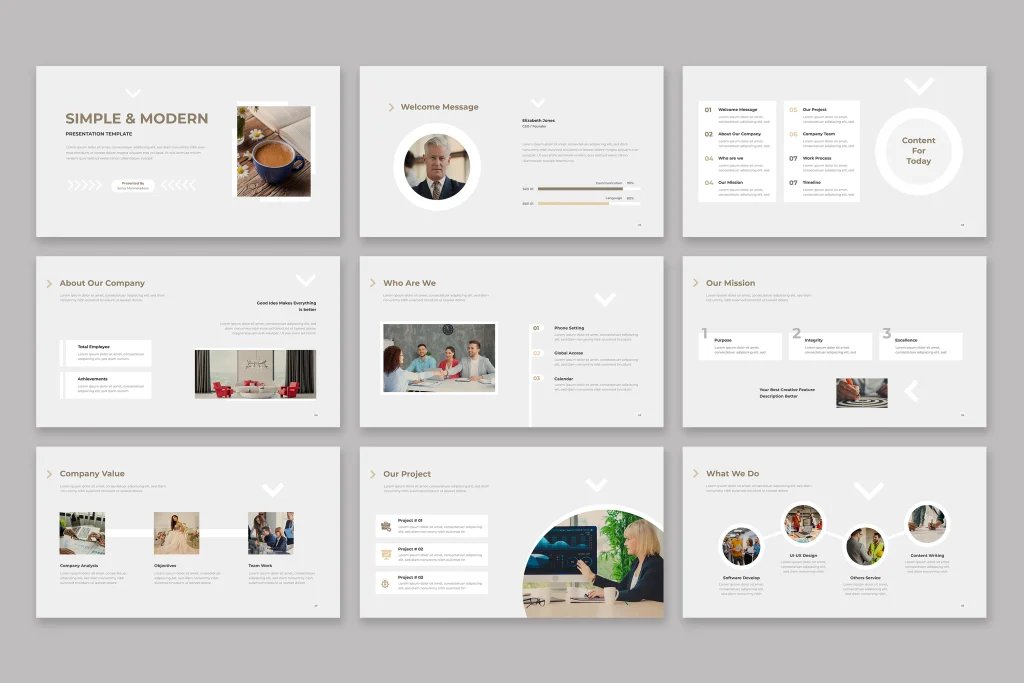
A presentation can have good information and still be difficult to follow. Use a consistent visual style and avoid filling every slide with text.
Try these improvements:
- Use one main idea per slide.
- Keep text large enough to read from a distance.
- Use consistent fonts and colors.
- Replace long paragraphs with diagrams or short bullet points.
- Use charts when they explain data more clearly than text.
- Remove images that do not support the message.
You can use the editor built into your AI presentation maker or export the file to compatible presentation software.
Step 6: Export and rehearse
Choose an export format that suits your audience. PowerPoint is useful when you need editable slides, while PDF can be convenient for sharing a fixed-layout version.
Open the exported file and inspect it before sending it to anyone. Look for missing fonts, altered layouts, misplaced images, and unexpected branding.
Finally, rehearse the presentation. AI can help you prepare the slides, but it cannot replace your understanding of the material.
Common Mistakes to Avoid When Using an AI Slide Generator
Asking for a presentation without explaining the audience
A presentation for executives should not use the same depth, language, or examples as a presentation for elementary school students. Always identify the audience and the intended outcome.
Accepting every AI-generated claim
A polished slide can make an unsupported claim look credible. Verify statistics, quotations, references, and important technical details.
Putting too much text on each slide
AI may produce paragraphs when you need short points. Ask for concise slide copy and move detailed explanations into speaker notes or a supporting document where appropriate.
Ignoring the export restrictions
Some tools limit downloads or place branding on free presentations. Check these restrictions before investing time in a particular platform.
Treating the first draft as finished
The strongest workflow is usually to let AI create the structure, review the information, refine the design, and then check the exported presentation.
Frequently Asked Questions
1. What is the best free AI presentation maker?
Gamma is a good starting point for generating presentation drafts from prompts. Canva is useful for visual customization, while Slidesgo and SlidesAI offer alternative workflows for creating and editing slides. The best choice depends on your free-plan limits, export requirements, and design preferences.
2. Can AI create a PowerPoint presentation automatically?
Yes. Some AI presentation makers generate a slide deck from a topic, prompt, or outline and offer PowerPoint export. Export availability and editability vary by platform and plan, so check these details before generating a large presentation.
3. Can I create an AI presentation without paying?
Yes, several tools offer free plans or limited free generation. However, free access may include restrictions on the number of presentations, prompt length, premium templates, branding, or downloads. A free trial is different from a permanent free plan.
4. Which AI PPT maker is best for students?
Students can start with Gamma, Canva, Slidesgo, or SlidesAI. Compare how much content you can generate for free, whether the tool exports editable slides, and whether its terms suit your intended use.
5. Can AI make a presentation from a PDF or Word document?
Some tools support importing documents or using uploaded material as source content. The supported file formats and access restrictions differ. Check the tool’s documentation, and review the generated slides to make sure they preserve the important information from the original document.
6. Are AI-generated presentations accurate?
Not necessarily. AI may omit important context, misinterpret source material, or invent facts. Always verify important claims and sources, especially for academic, medical, legal, financial, or business presentations.
7. Can I use AI-generated slides for commercial purposes?
That depends on the tool’s terms, the plan you use, and the rights attached to images, templates, fonts, and other assets. Review the applicable license before using the presentation for client work, advertising, or products you intend to sell.
8. Do AI presentation makers replace PowerPoint?
No. They help automate parts of presentation creation, but traditional presentation software remains useful for editing, rehearsing, presenting, and collaborating. Many people use AI to create the first draft and then refine it in PowerPoint or another compatible editor.
Conclusion
The best AI presentation maker depends on how you work. Gamma is a sensible first choice for generating slides from a prompt, Canva is useful for visual flexibility, Slidesgo suits template-based workflows, SlidesAI helps turn text into slides, and Beautiful.ai is worth evaluating for polished business presentations if its trial and subscription terms suit your needs.
Start by creating a short presentation with a clear purpose and audience. Review the generated content, correct factual errors, improve the design, and check export restrictions before you share the final file.
AI can save time on the first draft, but your judgment is what makes a presentation accurate, clear, and worth watching.
Explore more beginner-friendly AI tutorials on AI-Skol to learn how to use AI tools for writing, image generation, video creation, and everyday productivity.