Here is a repeatable process you can use for almost any channel.
Step 1: Identify the main promise of your video
Before generating an image, write down the one thing a viewer should understand from the thumbnail.
Imagine your video is titled How to Make AI Videos for Free. Your thumbnail does not need to explain every step in the tutorial. It might show a person looking at a laptop with a cinematic video preview and the words AI VIDEOS FOR FREE.
The title can explain the full topic. The thumbnail should communicate the central idea quickly.
Step 2: Choose one visual concept
Pick a single main subject and build the image around it. Depending on your niche, that could be:
- A person showing a strong but believable expression.
- A laptop or phone displaying a relevant visual.
- A before-and-after comparison.
- A product, object, or scene that represents the topic.
- A clear visual metaphor, such as a tangled cable for a complicated setup.
Avoid trying to show every part of the video in one image. Too many objects can make the design confusing when it appears small in a recommendation feed.
Step 3: Write a specific AI thumbnail prompt
A useful prompt describes the subject, composition, lighting, background, mood, and space for text. Instead of writing “make a viral YouTube thumbnail,” explain what the image should actually contain.
For example:
Create a professional YouTube thumbnail background for a beginner tutorial about free AI video creation. Show a realistic adult content creator at a desk, looking at a laptop displaying a cinematic video preview. Use dramatic but natural lighting, strong contrast, a deep navy and violet color palette, and a clean modern workspace. Place the main subject on the right side and leave clear negative space on the left for a headline. Wide 16:9 composition, sharp focal point, realistic details. Do not include text, logos, watermarks, or unnecessary objects.
Generate a few variations if the tool allows it. Compare composition and clarity rather than automatically choosing the most dramatic image.
Step 4: Generate the visual and refine it
Enter your prompt into the AI tool. If the first result is close but not right, make one or two targeted changes.
For example:
- “Move the subject farther to the right.”
- “Simplify the background.”
- “Make the laptop screen more visible.”
- “Use softer lighting and more realistic skin texture.”
- “Leave more empty space on the left.”
Specific instructions are usually easier to work with than repeating the entire prompt with vague requests such as “make it better.”
Step 5: Add the headline in a design editor
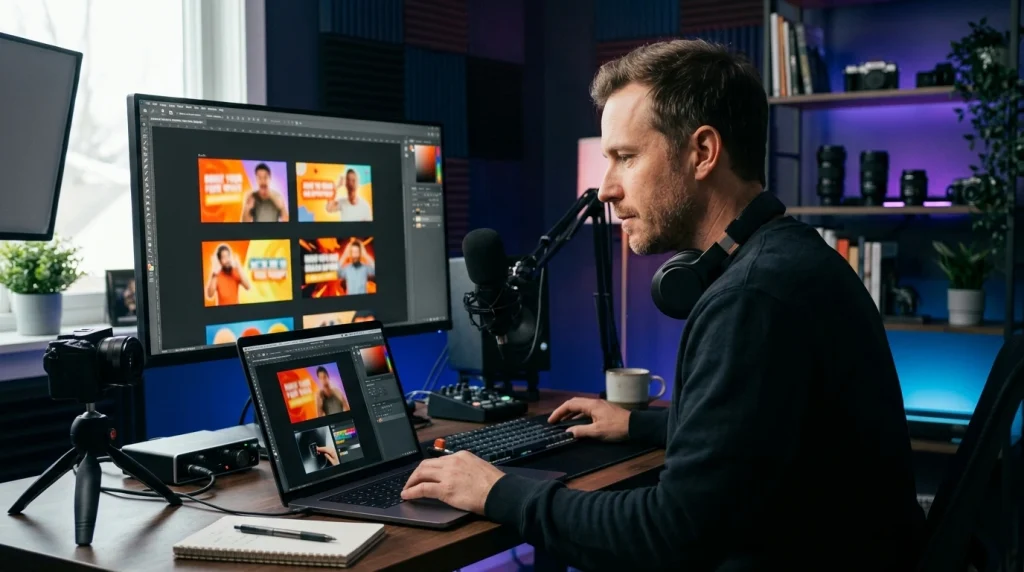
If your AI image contains no text, open it in Canva or Adobe Express and add a short headline. This gives you more control over spelling, font size, line breaks, and placement than relying on an image generator to render the words perfectly.
A useful starting point is a short phrase of roughly two to five words. That is a design guideline, not a strict rule. Use the fewest words needed to communicate the idea.
For example:
- AI PHOTOS MADE EASY
- EDIT VIDEOS WITH AI
- FREE AI TOOLS
- BUILD YOUR FIRST WEBSITE
Choose a bold, readable font and strong contrast between the lettering and its background. Keep text away from the edges and check that it remains legible when the image is reduced.
Step 6: Export and check the final image
Before uploading, make sure the design matches YouTube’s current thumbnail requirements. For regular videos, YouTube recommends a resolution of 3840 × 2160 pixels, with a minimum width of 640 pixels. A 16:9 canvas is the usual landscape format. YouTube’s official guidance is the best reference for current specifications.
YouTube Help
If your design tool exports at 1280 × 720, that is still a 16:9 image and can be a practical working size for many thumbnails. Follow YouTube’s latest upload requirements and check the file size and format before publishing.
Finally, view the image at a small size. If you cannot immediately identify the subject and read the headline, simplify it.
5 ready-to-use AI thumbnail prompts
Use these prompts as starting points. Replace the subject, colors, and setting to match your own video. They work best when you generate the visual first and add the headline separately in a design editor.
1. AI tutorial thumbnail

Suggested use: ChatGPT tutorials, AI tools, and beginner technology guides
“Create a high-quality YouTube thumbnail background for a beginner AI tutorial. Show an adult technology creator beside a laptop with a clear AI-generated visual on screen. Use cinematic navy and violet lighting, crisp details, strong contrast, and a clean composition. Put the subject on the right and leave empty space on the left for large headline text. Wide 16:9 format. No text, logos, watermarks, or clutter.”
2. Gaming thumbnail

Suggested use: Gameplay, gaming tips, and challenge videos
“Create a dynamic gaming YouTube thumbnail showing a focused gamer with an expressive face in front of a gaming setup. Use bold red and electric blue lighting, a clear focal point, dramatic depth, and a visually exciting but uncluttered background. Leave a clean area for a short headline. Wide 16:9 composition. No text, logos, watermarks, or fake game interfaces.”
3. Educational or student thumbnail

Suggested use: Study advice, online learning, and educational explainers
“Create a realistic YouTube thumbnail background for an educational video about learning with AI. Show a university-age student studying at a tidy desk with a laptop, notebook, and a thoughtful expression. Use bright natural light, warm neutral colors, and a clear main subject. Leave space on one side for a headline. Wide 16:9 composition, realistic photography, no text, logos, or watermarks.”
4. Before-and-after thumbnail

Suggested use: Photo editing, AI image generation, and transformation tutorials
“Create a YouTube thumbnail background with a clear split-screen before-and-after composition. Show the same fictional adult subject on both sides: one natural unedited portrait and one professionally enhanced portrait with realistic lighting and color. Keep facial features consistent, use a clean dividing line, and make the difference easy to see at small size. Wide 16:9 format. No labels, text, logos, or watermarks.”
5. Faceless documentary thumbnail

Suggested use: History, mysteries, investigations, and documentary storytelling
“Create a cinematic YouTube thumbnail background for a serious documentary about a historical mystery. Show a dimly lit archive room with old files, a single dramatic light source, deep shadows, and one clearly identifiable focal object. Use realistic textures, restrained red accents, and strong contrast without making the image visually noisy. Leave negative space for a short headline. Wide 16:9 composition. No readable text, logos, or watermarks.”
A simple formula for writing better thumbnail prompts
If you want to create your own thumbnail prompts instead of copying examples, use this formula:
Subject + action + composition + background + lighting + visual style + empty space + restrictions
For example:
- Subject: A freelance video editor.
- Action: Working on a laptop.
- Composition: Person positioned on the right.
- Background: Modern creative workspace.
- Lighting: Dramatic but realistic.
- Visual style: Professional editorial photography.
- Empty space: Clear area on the left for headline text.
- Restrictions: No logos, watermarks, or generated text.
Combine these details into a single prompt. You can then refine the result by changing one element at a time.
Should you ask AI to add the headline?
You can try, but adding text in a separate editor is usually easier to control. Image generators may misspell words, create strange letter shapes, or produce lettering that is difficult to read.
A reliable workflow is to generate a clean background first, then add the actual headline yourself. This also makes it easier to create several versions of the same thumbnail without generating the entire image again.
What makes an effective YouTube thumbnail?
A thumbnail should attract attention while accurately representing the video. AI can help create the image, but it cannot guarantee that viewers will click or that a video will perform well.
Use these practical design principles.
Keep one clear focal point
Choose a main face, object, product, or scene. A viewer should not have to work out which part of the image matters.
Make the headline easy to read
Use strong contrast and a font that remains legible at a small size. Avoid long sentences, thin lettering, and text placed over a complicated background.
Make the thumbnail and title work together
The thumbnail and video title should complement one another rather than repeat the same sentence. For a video titled How to Create AI Videos for Free, the thumbnail might say MAKE AI VIDEOS and show a relevant visual.
The image should not promise a result the video fails to deliver. Misleading visuals may attract curiosity but can disappoint viewers once the video starts.
Develop a recognizable channel style
You don’t need identical thumbnails for every upload. Instead, reuse a few visual elements, such as two brand colors, a consistent font, or a familiar layout. This can help your videos feel connected without making them look repetitive.
Test variations rather than guessing
If the feature is available for your channel and video, YouTube Studio’s Test & Compare lets eligible creators test up to three thumbnail options. YouTube evaluates the results using watch-time share, not simply the number of clicks. Eligibility restrictions apply, including restrictions on Shorts.
YouTube Help
Try variations with a meaningful difference. For example, compare a face-led thumbnail with a product-led design, rather than testing three nearly identical colors.
Common AI thumbnail mistakes and how to fix them
| Mistake | Better approach |
|---|---|
| Asking AI to put too many things in one image | Describe one main subject and one supporting element. |
| Using generated text without checking it | Add the final headline in a design editor. |
| Choosing an image that looks impressive but says nothing | Make the visual directly relevant to the video’s topic. |
| Using a cluttered background | Request a simpler scene and more negative space. |
| Making the headline too long | Reduce it to the essential idea. |
| Downloading without checking the file | Review the resolution, format, file size, and final appearance. |
| Copying another creator’s thumbnail exactly | Use competing thumbnails for inspiration, then create an original concept. |
| Assuming AI-generated images are automatically copyright-safe | Review the tool’s terms and the rights associated with your inputs and output. |
Important things to know before using free AI thumbnail tools
Free tools can be enough for a new channel, but there are a few details worth checking before you depend on one.
AI usage limits: A free account may include only a limited number of AI generations or uses. The limit may be shared across multiple features, as Canva explains in its official AI usage guidance.
Canva Help Center
Premium templates and assets: A tool can offer free design creation while reserving certain fonts, stock images, templates, or editing features for subscribers. Confirm that you can export your completed design without unwanted watermarks or payment requirements.
Commercial use: If you monetize videos, review the relevant terms for generated images, stock assets, fonts, and uploaded reference photos. Rules vary between services and asset types. Do not assume that every item available in a free editor has identical commercial-use permissions.
Privacy and likeness: Only upload photos you have permission to use. Be especially careful with other people’s faces, private images, and identifiable personal information.
Accuracy: If your thumbnail depicts a real person, product, place, or event, check that the image does not falsely suggest something happened. For tutorials and educational videos, accuracy matters more than visual drama.
These checks do not need to make the process complicated. A quick review before downloading can help you avoid problems later.
Frequently asked questions
1. What is the best free AI YouTube thumbnail maker?
There is no single best option for every creator. Canva and Adobe Express are useful starting points for template-based designs, while CapCut offers prompt-based AI thumbnail generation. YouTube Studio’s Ask Studio can help suggest ideas based on a video’s content. Compare current free access and export options before choosing.
2. Can I create YouTube thumbnails with AI for free?
Yes. Several tools offer free access to thumbnail design or AI-assisted features. However, some AI generations, premium templates, and editing tools may have usage limits or require a subscription. Check the current plan details before you start.
3. What prompt should I use for an AI thumbnail generator?
Describe the main subject, what is happening, the composition, background, lighting, and desired visual style. Include instructions about where to leave space for text. For example: “Create a realistic technology tutorial thumbnail with a person on the right, a laptop displaying an AI image, dramatic navy lighting, and clear empty space on the left. Wide 16:9 composition, no text or logos.”
4. What size should a YouTube thumbnail be?
YouTube recommends thumbnails for regular videos at 3840 × 2160 pixels, with a minimum width of 640 pixels. A 16:9 landscape composition is the standard choice for regular videos. Check YouTube’s official thumbnail requirements before exporting, since platform specifications can change.
YouTube Help
5. Should AI generate the text on my thumbnail?
Usually, it is easier to generate the image without text and add the headline in a design editor. This gives you control over spelling, font choice, size, and placement. It also makes it simpler to create alternate versions.
6. Can I use AI-generated thumbnails on a monetized YouTube channel?
Potentially, yes, but you need to follow the terms of the AI tool and the applicable rules for images, fonts, and other assets. You should also ensure the thumbnail complies with YouTube’s policies and represents the video honestly. Monetization eligibility is determined by YouTube’s requirements, not by the thumbnail tool alone.
7. Do AI thumbnails guarantee more views?
No. A thumbnail can make a video’s topic easier to recognize, but views depend on several factors, including the topic, title, audience, video quality, and viewer response. Use YouTube Analytics to understand how impressions turn into views and watch time, and use eligible thumbnail experiments when available.
8. Can I use my own face in an AI thumbnail?
Many AI image and design tools support uploading a personal photo or editing an existing portrait. The available options differ by tool. Use a photo you have the right to use, review the result for unnatural facial details, and make sure the final image still represents you accurately.
Conclusion
Creating YouTube thumbnails with AI is a practical way to develop visual ideas without starting from scratch. For a straightforward workflow, choose a free-to-start editor, generate or upload one strong image, add a short headline, and check the final thumbnail at a small size.
Start with Canva or Adobe Express if you want more control over the layout, or explore CapCut if you prefer prompt-based generation. Most importantly, make the thumbnail relevant to the actual video. Then review your channel’s performance and test different concepts when YouTube’s tools make that possible.
A useful next step is to save the prompt formula from this guide and adapt it for your next upload. Once you have a consistent process, creating a clear, professional thumbnail becomes much easier.