Creating professional-looking images no longer requires expensive design software or advanced graphic design skills. With a free AI image generator, you can turn a written description into a digital illustration, realistic-looking photograph, product concept, social media graphic, or creative artwork in minutes.
Whether you are a beginner, blogger, student, YouTuber, online business owner, or digital creator, AI image generation can help you turn ideas into visual content without starting from a blank canvas.
But which free AI image generator should you choose? Some tools are easier for beginners, others offer more creative control, and some are particularly useful for designs that include text. Free access also comes with different usage limits, features, and licensing terms.
In this guide, you will discover seven AI image generators worth considering in 2026, learn how to create your first AI image, and find practical prompts for generating better results.
Quick Answer: What Is the Best Free AI Image Generator?
The best free AI image generator depends on what you want to create.
- Google Gemini: A useful starting point for generating and editing images through conversational prompts.
- Microsoft Designer: A beginner-friendly option for generating images and incorporating them into visual designs.
- Adobe Firefly: Worth considering for creative workflows involving image generation and editing.
- Canva AI: Convenient for combining AI-generated visuals with social media posts, presentations, and other designs.
- Ideogram: A strong candidate for posters, graphics, and images that need readable text.
- Leonardo AI: Worth exploring for creative artwork, stylized visuals, and detailed image concepts.
- Stable Diffusion: An option for users who want greater control and are comfortable with a more technical setup.
These are use-case-based recommendations, not the results of a controlled hands-on test. Features, free allowances, and access conditions can change, so check each provider’s current terms before committing to a workflow.
What Is a Free AI Image Generator?
A free AI image generator is a tool that uses artificial intelligence to create or modify images based on instructions, usually called prompts.
For example, you could enter:
“Create a photorealistic image of a cozy wooden cabin beside a mountain lake at sunrise, soft golden light, mist over the water, cinematic composition, natural colors.”
The AI interprets the description and produces an image based on the prompt and the model’s capabilities.
Depending on the tool, you may also be able to upload an existing image, change its background, modify particular details, generate different versions, or turn a rough concept into a polished visual.
What Can You Create With AI Image Generators?
AI image generators can help you create:
- Realistic-style portraits and profile pictures.
- Digital art, illustrations, and fantasy scenes.
- Blog featured images and editorial illustrations.
- Product concepts and marketing visuals.
- YouTube thumbnails and social media graphics.
- Posters, invitations, and promotional designs.
- Backgrounds, mood boards, and design concepts.
- Educational diagrams and visual explanations.
AI-generated images may contain mistakes, especially in fine details, hands, complex objects, and written text. Always review the result before publishing it.
7 Best Free AI Image Generators in 2026
1. Google Gemini — Best for Conversational Image Creation
Google Gemini is a useful starting point for people who want to generate or refine images by describing what they have in mind.
Instead of learning complicated design controls, you can explain your idea in everyday language. You can also request changes to an existing generated image or upload an image and describe the edits you want.
Google’s official Gemini help documentation explains how users can generate images, download results, and refine images through prompts. Availability and usage limits depend on the account, region, and current product rules.
Best for: Beginners, creative brainstorming, image editing, and people who prefer conversational instructions.
What you can try:
- Generate scenes from written descriptions.
- Explore different artistic styles.
- Request changes to backgrounds, colors, or composition.
- Develop concepts for blog images and social media content.
Potential limitation: Image generation has usage limits, and access to particular models or features may require a subscription.
How to get started: Visit Google Gemini, sign in if required, open the image-generation experience available to your account, and enter a descriptive prompt.
Source: Official Gemini image generation guide.
2. Microsoft Designer — Best for Beginners and Everyday Graphics
Microsoft Designer combines AI-assisted visual creation with design tools that help users produce graphics for everyday projects.
You can describe an image you want to create and use the resulting visual in a banner, announcement, or other design. It is particularly worth exploring if you want an accessible workflow rather than a complex image-editing application.
Microsoft states that Designer is free to use, although a subscription may be required for more frequent use. Some generated text may contain spelling errors, so inspect any image containing words.
Best for: Beginners, simple graphics, creative concepts, and everyday visual content.
What you can try:
- Generate an image for a blog post.
- Create a visual concept for a social media campaign.
- Explore different backgrounds and artistic styles.
- Build a banner or announcement around an AI-generated visual.
Potential limitation: Availability and usage restrictions can depend on the account and feature. Images with embedded text may require correction.
How to get started: Visit Microsoft Designer and look for its image-generation features.
Source: Microsoft Designer FAQ.
3. Adobe Firefly — Best for Creative Image Workflows
Adobe Firefly is an AI-powered creative tool for generating and editing images and other visual assets. It can be useful for people who want to develop visual concepts and refine them as part of a broader design workflow.
For example, a blogger could generate a conceptual illustration, while a marketer could explore possible campaign visuals before developing a final design.
Adobe offers free access with limited daily generations. Available features and usage allowances depend on the current plan and the particular generation feature.
Best for: Creative projects, marketing concepts, image editing, and workflows connected to Adobe’s creative applications.
What you can try:
- Generate images from descriptive text.
- Explore alternative visual concepts.
- Refine an image for a creative project.
- Develop ideas for mood boards and promotional graphics.
Potential limitation: Free generations are limited, and certain features require a paid plan. Check the applicable terms before using outputs in commercial projects.
How to get started: Visit Adobe Firefly and select an available image-generation feature.
Sources: Adobe Firefly and Adobe’s generative credits guide.
4. Canva AI — Best for Social Media and Marketing Designs
Canva is useful when you need more than an image. Its AI tools let you generate visuals and incorporate them into designs such as social media posts, presentations, promotional graphics, and other visual materials.
For example, you could generate an illustration for an Instagram post, place it in a layout, add your own headline, and export the finished design.
Canva’s Magic Media feature supports image generation from written descriptions. Its free users have limited AI usage, and allowances vary by tool and plan.
Best for: Bloggers, small businesses, students, social media creators, and people who want to combine generated images with text and layouts.
What you can try:
- Create images for social media posts.
- Develop blog graphics and presentation visuals.
- Combine generated images with headings and branding.
- Resize and adapt designs for different platforms.
Potential limitation: Some advanced AI features and higher usage allowances require a paid subscription. Canva also notes that copyright rules differ by country and that recognizable people, characters, or brands may require permission.
How to get started: Visit Canva and explore Magic Media or the available AI image-generation tools.
Sources: Canva Magic Media guide and Canva AI usage limits.
5. Ideogram — Best for Images With Text
Generating a visually attractive image is one challenge. Generating an image with correctly spelled words, a specific headline, or a readable poster layout is another.
Ideogram is worth considering when typography is an important part of the design. This makes it relevant for posters, thumbnails, promotional graphics, and other visual projects that combine imagery with words.
Best for: Posters, text-heavy graphics, thumbnail concepts, and designs where text placement matters.
What you can try:
- Generate a poster concept with a short headline.
- Explore different typography and layout directions.
- Create promotional graphic concepts.
- Experiment with visual styles for online content.
Potential limitation: Text accuracy is not guaranteed. Proofread generated words, and check the current free allowance before planning a large project. Ideogram’s free tier has used weekly credits for eligible accounts, and the exact allowance may change.
How to get started: Visit Ideogram and create an account if required.
Source: Official Ideogram pricing and plan details.
6. Leonardo AI — Best for Detailed Creative Artwork
Leonardo AI is another option for exploring stylized images, character concepts, digital artwork, and visually detailed scenes.
It may be useful when you want to experiment with different artistic directions rather than produce a simple stock-style illustration.
Best for: Digital art, fantasy concepts, stylized scenes, and creative experimentation.
What you can try:
- Create concept art for a story.
- Explore different character designs.
- Generate atmospheric landscapes.
- Develop visual ideas for games or creative projects.
Potential limitation: The learning curve can be steeper than that of simpler tools, and generation allowances depend on the current plan. Review privacy settings and licensing terms before using outputs in client or commercial projects.
How to get started: Visit Leonardo AI and review the image-generation options available to your account.
7. Stable Diffusion — Best for Users Who Want More Control
Stable Diffusion is a family of image-generation models that can be used through different applications and interfaces. Depending on the implementation, users may be able to customize models, workflows, generation settings, and image-editing processes.
Unlike a typical hosted image generator, running a compatible Stable Diffusion setup locally can offer more control over the environment in which images are generated.
Best for: Advanced hobbyists, designers, developers, and users who want more customization.
What you can try:
- Experiment with different models and visual styles.
- Adjust image-generation settings.
- Build repeatable creative workflows.
- Explore specialized community tools and interfaces.
Potential limitation: Local installation may require compatible hardware, technical setup, and storage space. Hosted services can impose their own limits and fees. Model licenses also differ, so do not assume every model permits the same commercial uses.
How to get started: Explore the official Stable Diffusion resources and check the license for the specific model you intend to use.
Free AI Image Generators Compared
Use this table to narrow down your options before trying them.
| Tool | Best use case | Beginner-friendly? | Free access |
|---|---|---|---|
| Google Gemini | Image creation and conversational edits | Yes | Available with limits |
| Microsoft Designer | Everyday graphics and image concepts | Yes | Available with restrictions |
| Adobe Firefly | Creative image generation and editing | Yes | Limited generations |
| Canva AI | Social posts and designed graphics | Yes | Limited AI allowance |
| Ideogram | Posters and text-heavy images | Yes | Limited credits |
| Leonardo AI | Detailed creative artwork | Moderate learning curve | Plan-dependent allowance |
| Stable Diffusion | Custom workflows and advanced control | More technical | Depends on the implementation |
This is a practical shortlist, not a controlled performance ranking. The tools differ in image quality, editing capabilities, access limits, privacy, and licensing. Your best choice depends on the result you need.
How to Create AI Images for Free: Step-by-Step Guide
You do not need professional design experience to get started. Follow these steps to create your first image.
Step 1: Choose an AI Image Generator
Start with a tool that fits your goal.
For a simple image, try Google Gemini or Microsoft Designer. For a social media design, Canva may be more convenient. For a poster with visible text, consider Ideogram.
Open the official website, sign in if required, and check whether image generation is available to your account.
Step 2: Decide What You Want to Create
Before writing a prompt, define the purpose of the image.
Ask yourself:
- What is the main subject?
- Where will the image be used?
- Should it look realistic, illustrated, cinematic, or minimalist?
- What background and lighting would suit the subject?
- Do you need a square, portrait, or landscape composition?
A clear objective makes it easier to write a useful prompt.
Step 3: Write a Detailed AI Image Prompt
An AI image prompt is the instruction that describes the visual you want the tool to generate.
Instead of writing only “a beautiful mountain,” provide more context.
Weak prompt:
“A mountain.”
Improved prompt:
“Create a photorealistic landscape of a snow-covered mountain at sunrise, a clear alpine lake in the foreground, soft golden light, subtle mist, detailed natural textures, balanced composition, and a calm atmosphere. Use a wide landscape composition without text or watermarks.”
The improved prompt specifies the subject, environment, lighting, visual style, composition, and unwanted elements.
Step 4: Generate the Image
Enter your prompt and start the generation process.
Depending on the tool, you may receive one or several variations. Compare the results against your original instructions.
Do not assume the first output will be perfect. Small changes in the prompt can produce substantially different results.
Step 5: Improve the Result
If the image is close to what you want, refine it rather than starting over immediately.
For example, you could ask:
- “Make the lighting softer and more natural.”
- “Use a cleaner background with fewer distractions.”
- “Move the main subject toward the center.”
- “Make the colors more realistic and less saturated.”
- “Preserve the subject but change the background to a bright studio.”
When editing an existing image, specify which details should change and which should remain the same.
Step 6: Download and Review Your Image
Download the result using the tool’s available options.
Before publishing it, check:
- Whether the subject looks realistic and consistent.
- Whether hands, faces, objects, and fine details contain errors.
- Whether text is spelled correctly.
- Whether the image has the right dimensions.
- Whether the file is suitable for your website or platform.
- Whether the tool’s licensing and usage terms allow your intended use.
For website images, compress the file appropriately and use descriptive filenames and alt text.
5 AI Image Prompts You Can Copy and Use
The following prompts are starting points. Adjust the subject, style, colors, and composition to fit your project.
1. Prompt for a Realistic AI Photo
“Create a photorealistic editorial photograph of a young adult standing in a modern urban environment at golden hour. Use natural skin texture, realistic proportions, soft directional lighting, subtle background blur, authentic colors, and professional photography composition. Avoid excessive retouching, distorted features, and artificial-looking skin.”
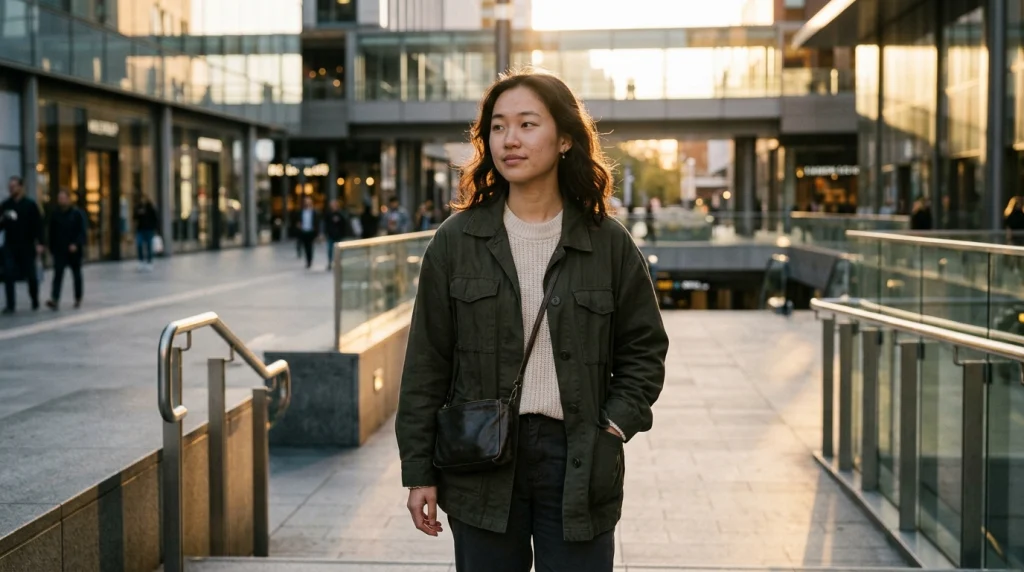
Useful for: Editorial concepts, fictional portraits, and visual storytelling.
2. Prompt for AI Product Photography
“Create a premium commercial product photograph of a matte black skincare bottle placed on a clean ivory studio surface. Use soft diffused lighting, realistic shadows, precise material textures, elegant composition, and a neutral background. Keep the product centered and clearly visible, with generous negative space. Do not add extra objects, logos, labels, or text.”
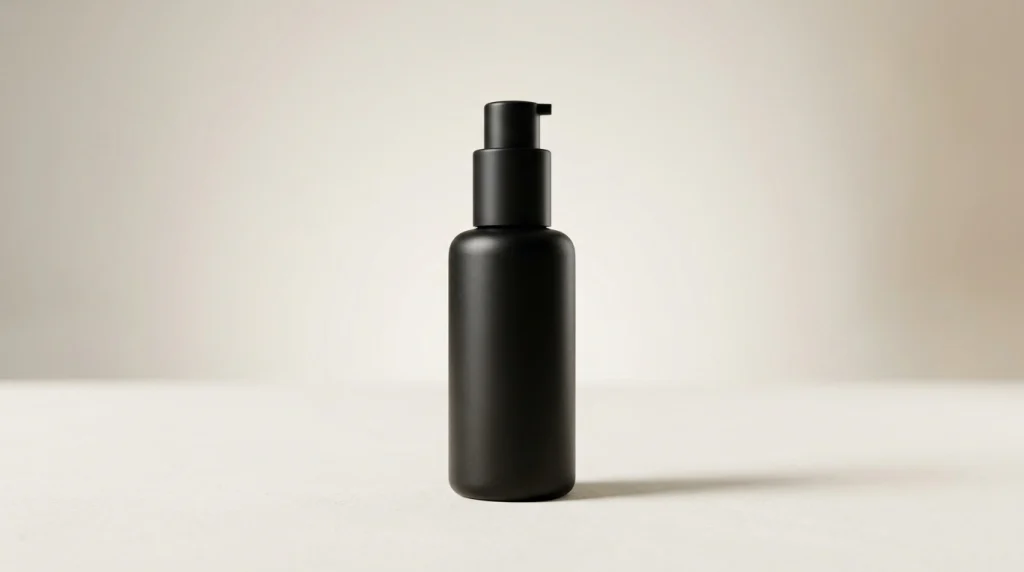
Useful for: Product concepts, advertising mockups, and creative direction.
Important: If the image represents a real product, compare it with the actual item before publishing. AI can change packaging, dimensions, colors, and labels.
3. Prompt for AI Digital Art
“Create a detailed fantasy illustration of an ancient floating city above the clouds, with elegant stone architecture, waterfalls descending into the mist, warm sunlight, distant mountains, intricate environmental details, and a cinematic sense of scale. Use a painterly digital art style, rich atmospheric depth, and a balanced wide composition.”
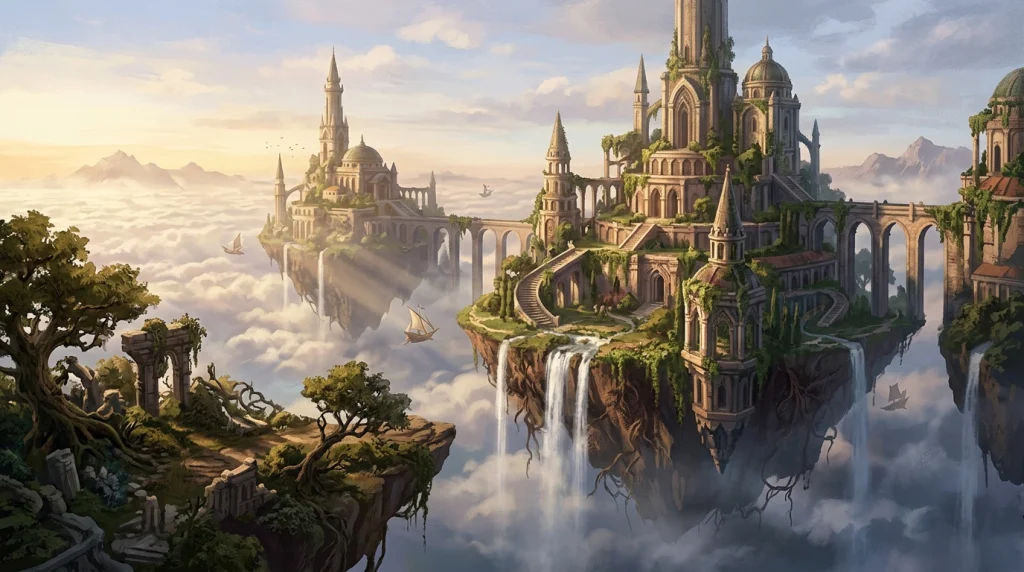
Useful for: Fictional worlds, concept art, storytelling, and creative projects.
4. Prompt for a YouTube Thumbnail
“Create a dramatic YouTube thumbnail concept about exploring an abandoned futuristic city. Show a large central subject, striking light and shadow, strong visual contrast, a clear focal point, and an uncluttered background. Leave clean negative space on the left for a headline that will be added later. Use a wide 16:9 composition. Do not generate text, logos, or watermarks.”
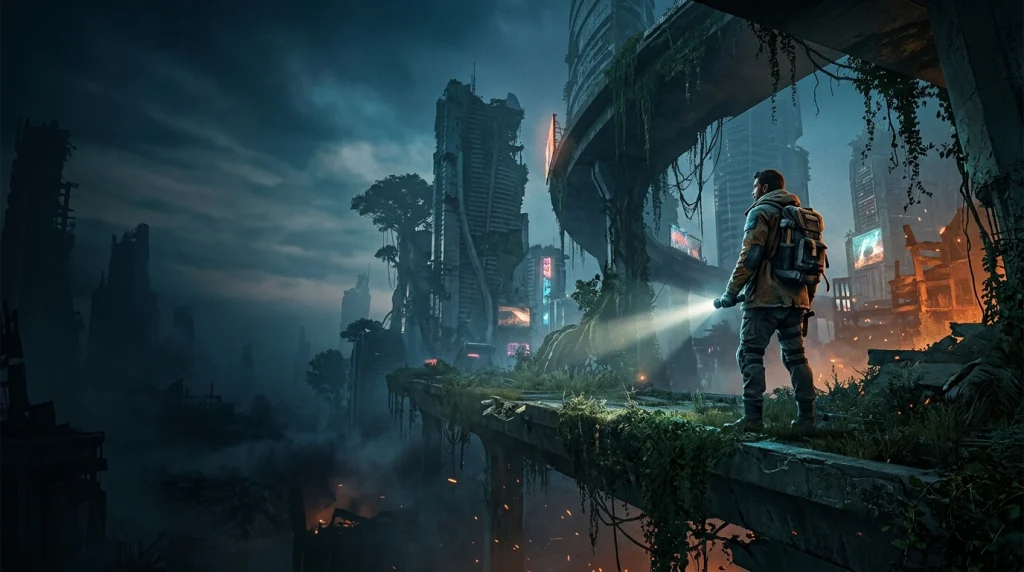
Useful for: YouTube videos and video cover concepts.
For the most reliable typography, add the final headline separately in a design tool instead of relying on the image generator to spell every word correctly.
5. Prompt for a Blog Featured Image
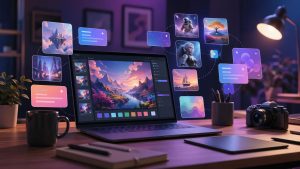
“Create a polished editorial illustration representing artificial intelligence and digital creativity. Show a modern computer workstation with abstract glowing visual elements, floating image concepts, subtle blue and violet accents, and a clean contemporary atmosphere. Use professional lighting, a clear focal point, balanced composition, and a wide landscape format suitable for a technology blog. Avoid text, logos, and watermarks.”
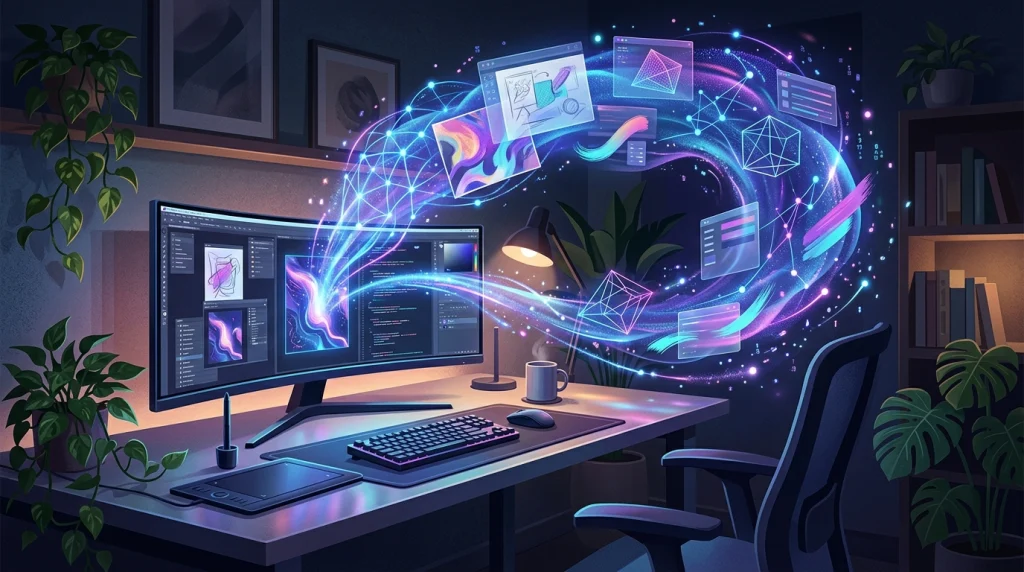
Useful for: AI tutorials, technology articles, and educational websites.
How to Write Better AI Image Prompts
A good prompt describes the image clearly without overwhelming the generator with contradictory instructions.
A useful formula is:
Subject + action + environment + visual style + lighting + composition + details to avoid
For example:
“An orange cat sleeping on a windowsill, inside a cozy modern apartment, photorealistic photography, soft morning sunlight, close-up composition, detailed fur, warm neutral colors, no text or watermark.”
Here is how to improve each part of the prompt.
Be Specific About the Subject
Instead of “a car,” describe “a silver electric sports car parked on a wet city street at night.”
Specific details help communicate the intended result.
Describe the Visual Style
Useful style descriptions include:
- Photorealistic photography.
- Minimalist illustration.
- Watercolor painting.
- Cinematic concept art.
- Editorial photography.
- Three-dimensional product render.
- Vintage film aesthetic.
Choose a style that matches your intended use.
Include Lighting and Composition
Lighting and composition strongly influence the appearance of an image.
Try terms such as soft studio lighting, overcast daylight, dramatic side lighting, overhead view, close-up, wide-angle composition, centered subject, or shallow depth of field.
Avoid Conflicting Instructions
A prompt that requests a minimalist image with dozens of background objects may produce an inconsistent result.
Prioritize the most important details and refine the image through follow-up instructions.
Generate Several Variations When Possible
If your tool allows multiple variations within your free allowance, compare the results before deciding which one to keep.
Evaluate composition, subject accuracy, color, lighting, and usefulness rather than choosing solely on visual impact.
Can You Use AI-Generated Images for Commercial Purposes?
Sometimes, but you should check the applicable terms before using an image commercially.
Commercial use can include product advertisements, client projects, website graphics, promotional materials, and other business activities.
Before publishing or selling an AI-generated image, check the following:
- The tool’s terms: Confirm what the provider allows for images created under your plan.
- Model licensing: Some models have separate licenses or restrictions.
- Copyright considerations: Copyright protection for AI-generated content varies by jurisdiction and circumstances.
- Trademarks and recognizable characters: Avoid assuming that an AI-generated logo, character, or branded product is free from third-party rights.
- Privacy and consent: Be careful when generating or editing images of real people.
- Product accuracy: Do not use generated visuals to misrepresent the appearance or features of a real product.
For example, Canva states that its users may use generated content subject to its Terms of Use, while also noting that AI-generated content does not necessarily provide exclusive rights and that recognizable people, characters, or brands can require permission.
Read the current terms for the particular tool you choose. Do not assume that every free AI image generator offers identical commercial-use rights.
Common Problems With Free AI Image Generators
Why Does My AI Image Look Unrealistic?
Your prompt may not contain enough detail, or the model may struggle with a particular subject.
Try specifying natural lighting, realistic proportions, material textures, and a simpler composition. Generate another version if the result still contains visible mistakes.
Why Does AI Generate Incorrect Text?
Many image models can make spelling errors or produce distorted letters.
For posters, logos, and thumbnails, consider generating the background and adding the final words separately in a design application.
Why Has My Free Image Limit Been Reached?
Many services use daily, weekly, or monthly allowances, while others apply account-specific usage restrictions.
Check your account’s remaining allowance and current plan details. You may need to wait for the allowance to reset or use another tool.
Can I Generate AI Images Without Creating an Account?
It depends on the service and feature. Some tools may allow limited access without signing in, while others require an account before image generation or downloads are available.
Check the provider’s current requirements before starting.
Are Free AI Image Generators Safe?
Use official websites and review their privacy policies. Avoid uploading sensitive personal information, confidential client material, or private photographs unless you understand how the provider processes and retains them.
Also verify downloaded files and avoid suspicious third-party sites claiming to provide unrestricted access to paid tools.
Frequently Asked Questions
1. What is the best free AI image generator in 2026?
There is no single best option for everyone. Google Gemini is worth trying for conversational image creation, Microsoft Designer for accessible graphics, Canva for complete designs, and Ideogram for images where text is important. Your choice depends on the task and available free usage.
2. How can I create AI images for free?
Choose a tool with free image-generation access, enter a descriptive prompt, generate an image, refine it if necessary, and download the result. Check the free usage allowance before creating a large batch of images.
3. What is the best free AI image generator for realistic photos?
Start by comparing Google Gemini, Adobe Firefly, and other available image models using the same prompt. Examine realism, lighting, textures, subject accuracy, and editing options rather than relying on a tool’s marketing claims.
4. Can I use a free AI image generator without a watermark?
Some tools may allow downloads without a visible watermark, but this varies by provider, feature, and plan. Check the output and terms before choosing a tool for a project that requires watermark-free images.
5. Which free AI image generator is best for product photography?
Tools such as Google Gemini and Adobe Firefly can be useful for product concepts and creative visuals. However, AI can change product details. For real ecommerce listings, ensure the final image accurately represents the actual product and complies with the marketplace’s rules.
6. Can AI image generators create images from text?
Yes. Text-to-image generation allows you to describe a subject, environment, style, and composition in a written prompt. The model then creates an image based on that description.
7. Can I use AI-generated images on my blog?
You can use AI-generated images on a blog when your use complies with the tool’s terms and applicable law. Review the image for errors, check licensing and privacy concerns, and avoid creating visuals that mislead readers.
8. Do I need graphic design skills to use AI image generators?
No. Most beginner-friendly tools accept ordinary written descriptions. Learning how to describe subjects, lighting, styles, and composition will help you produce more useful results, even without formal design experience.
Final Verdict: Which Free AI Image Generator Should You Try?
If you are new to AI image creation, start with Google Gemini or Microsoft Designer and experiment with simple prompts. If your goal is to produce social media posts and finished layouts, explore Canva. If you need typography in an image, try Ideogram. For more specialized creative workflows, consider Adobe Firefly or Leonardo AI. Advanced users may prefer the flexibility of Stable Diffusion.
The most effective approach is to choose a tool for a specific task, write a clear prompt, inspect the result, and refine it until it meets your needs.
Free plans can be enough for occasional image creation, but they differ in generation limits, features, privacy settings, and licensing. Review the current terms before using generated images in business projects.
Ready to create your first image? Choose one tool from this list, copy one of the prompts above, and experiment with different styles and compositions. With practice, you will learn which prompts and tools produce the results you want.